
Portico Statement Messages Made Easy
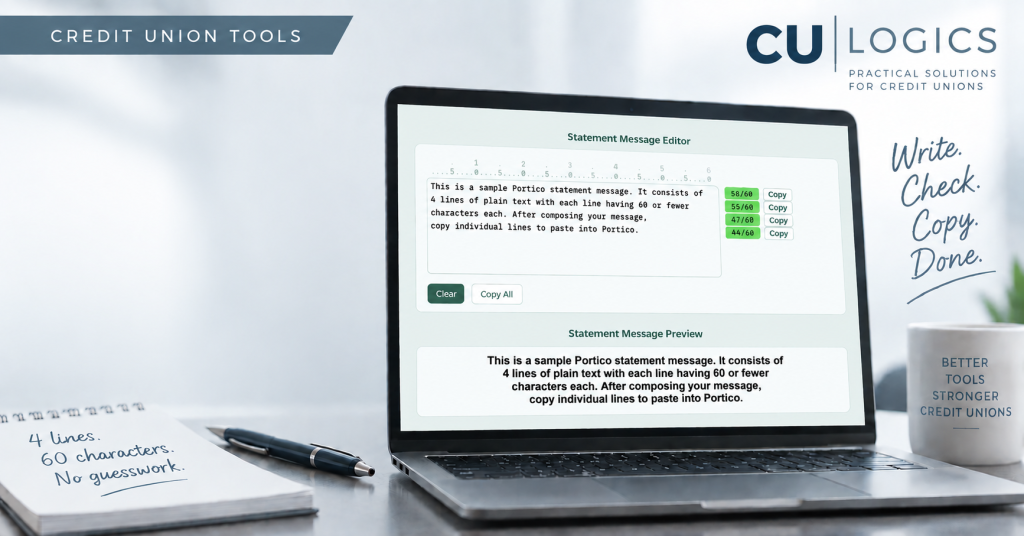
tl;dr I found it tedious to craft statement messages consisting of 4 lines of 60 characters each, so I created the Portico Statement Message Assistant.
When the Director of Marketing left one of my credit union clients, I was asked to step in and handle some of the marketing duties. Of course, I brought my automation and systems mindset with me.
One of the tasks that I found somewhat irritating was developing the monthly top and bottom statement messages.
Fiserv’s Portico has strict requirements for statement messages—they must consist of no more than 4 lines of no more than 60 characters each. That’s a maximum of 240 characters—shorter than a post on X, with the added restriction that those characters have to fit into four separate 60-character lines.
When writing a statement message in Portico, each line is edited independently. Text doesn’t flow from one line to the next and there is no automatic word wrap. So, statement messages are usually crafted outside of the Portico interface and then each line is pasted into the editor before being saved.
We have a few options for drafting statement messages outside of Portico. You can count the characters manually, but every edit means counting again. Or you can use Notepad and watch the cursor position in the status bar. That’s better, but there’s still a lot of back-and-forth as you adjust the message.
I wanted an editor that let me write and edit normally, but instantly showed me when a line was too long. So, to make my job easier, I built the Portico Statement Message Helper. This little browser-based tool made it super easy to craft my statement messages within those constraints and quickly make adjustments as needed. It even had a preview of what the statement message would look like on our statements so that I could take a screenshot and send to our employees before statements were printed and distributed.
The tool was a little crude, but it was for my own use and it worked well enough. I was recently thinking that marketing professionals in other Portico credit unions might dislike this process as much as I used to and so they might find a similar tool helpful too.
I polished the tool, added a few new features, and made it available here on CU Logics for anyone to use.
The new version gives you a live character count for each line, immediately shows you when you’ve exceeded Portico’s 60-character limit, and lets you copy each finished line individually for pasting into Portico. It also gives you a statement preview so you can see how the finished message will look.
You will find it at https://culogics.com/portico-statement-message-assistant. You might want to bookmark this tool alongside other sites like Impact Marketing and Client 360.
It’s a small tool for a small problem—but those are often my favorite things to automate. If something is unnecessarily tedious and a computer can make it easier, I’d rather let the computer do it.
The next time you’re developing a Portico statement message, give the Portico Statement Message Assistant a try.
If you encounter any issues, or if there are features you would like to see added, just let me know in the comments below.
